In the previous article [[SwiftUI Composable Architecture - 1 Introduction|[SwiftUI Composable Architecture: 1 — Introduction]]], we explored the core concepts behind Swift Composable Architecture (TCA): State, Action, Reducer, Store, and how data flows through them.
That was the theory, and now it’s time to see it in action.
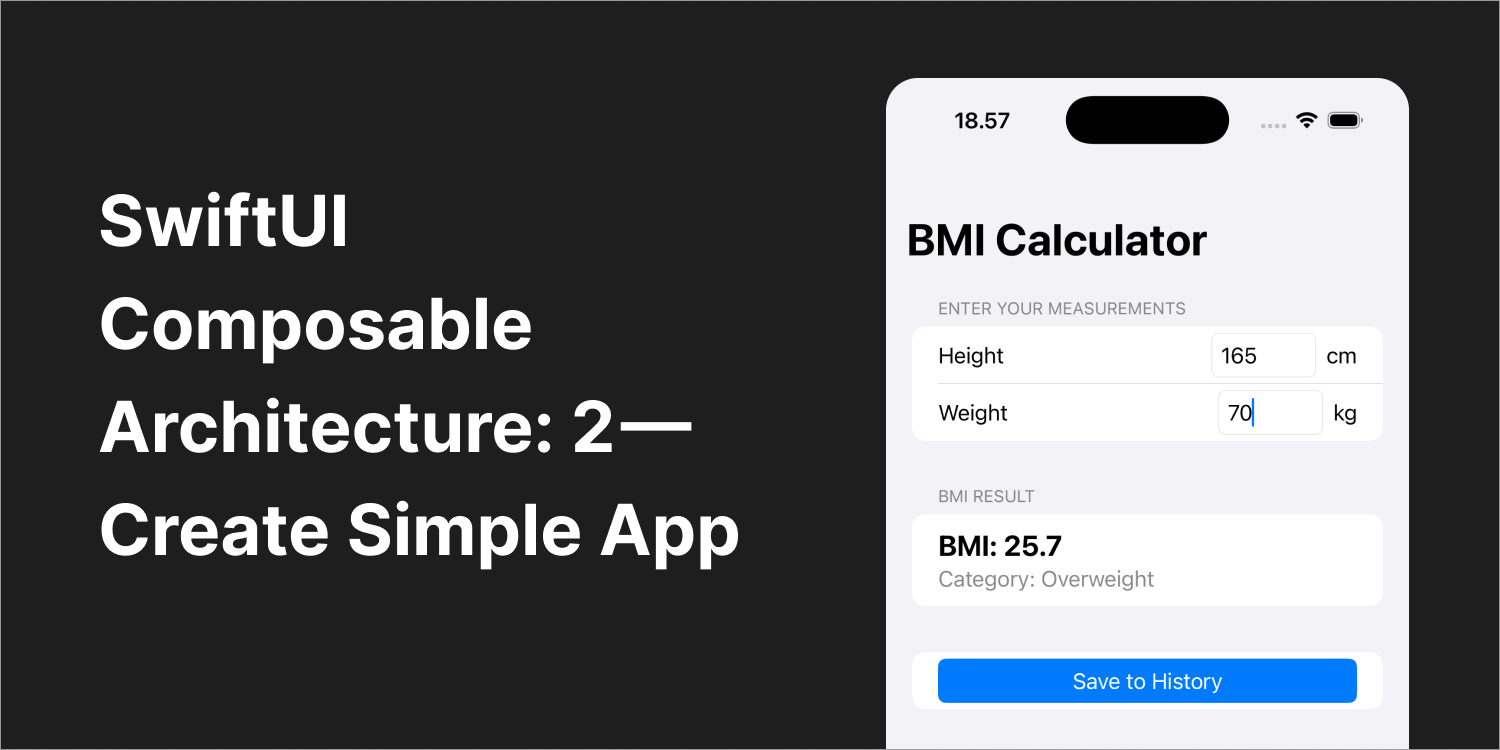
In this part, we’ll build a simple BMI Calculator app from scratch. We’ll start with a regular SwiftUI implementation and then gradually refactor it into a proper TCA architecture. This way, you can clearly see the before and after of using TCA and understand why the shift matters.
By the end of this tutorial, you’ll understand:
- How to structure features using TCA
- State management and actions
- Dependency injection for external systems
- Feature composition and communication
- Best practices for scalable TCA apps
What We’re Building:
- BMI Calculator with input validation
- History tracking
- Tab-based navigation between features
- Clean and maintainable architecture
This article will be organized into phases and steps, so you can follow the transformation clearly and gradually.
Phase 1: Pure SwiftUI Implementation
Let’s begin with a simple SwiftUI implementation to see what we’re working with. This will give us a baseline to understand the problems TCA solves.
Project Setup
First, create a new SwiftUI project in Xcode:
- Open Xcode → Create New Project → iOS → App
- Name it “BMICalculator”
- Make sure “Use SwiftUI” is selected
Creating the BMI Model
Create a new Swift file for our model:
- Right-click on your project → New File → Swift File
- Name it
BMI.swift - Add the following code:
import Foundation

struct BMI: Equatable, Identifiable {
    let id = UUID()
    let height: Double // in cm
    let weight: Double // in kg
    let date: Date

    var value: Double {
        let heightInMeters = height / 100
        return weight / (heightInMeters * heightInMeters)
    }

    var category: BMICategory {
        switch value {
        case ..<18.5:
            return .underweight
        case 18.5..<25:
            return .normal
        case 25..<30:
            return .overweight
        default:
            return .obese
        }
    }

    var formattedValue: String {
        String(format: "%.1f", value)
    }
}

enum BMICategory: String, CaseIterable {
    case underweight = "Underweight"
    case normal = "Normal"
    case overweight = "Overweight"
    case obese = "Obese"
}
Basic SwiftUI Implementation
Now let’s update the main view file:
- Open
ContentView.swift(created by default) - Replace the entire content with the following code:
import SwiftUI

struct ContentView: View {
    @State private var height: String = ""
    @State private var weight: String = ""
    @State private var bmiHistory: [BMI] = []
    @State private var showingHistory = false

    var calculatedBMI: BMI? {
        guard let heightValue = Double(height),
              let weightValue = Double(weight),
              heightValue > 0,
              weightValue > 0 else {
            return nil
        }

        return BMI(height: heightValue, weight: weightValue, date: Date())
    }

    var body: some View {
        NavigationView {
            Form {
                Section {
                    HStack {
                        Text("Height")
                        Spacer()
                        TextField("170", text: $height)
                            .keyboardType(.decimalPad)
                            .textFieldStyle(.roundedBorder)
                            .frame(width: 80)
                        Text("cm")
                    }

                    HStack {
                        Text("Weight")
                        Spacer()
                        TextField("70", text: $weight)
                            .keyboardType(.decimalPad)
                            .textFieldStyle(.roundedBorder)
                            .frame(width: 80)
                        Text("kg")
                    }
                } header: {
                    Text("Enter Your Measurements")
                }

                Section {
                    if let bmi = calculatedBMI {
                        VStack(alignment: .leading) {
                            Text("BMI: \(bmi.formattedValue)")
                                .font(.title2)
                                .fontWeight(.bold)

                            Text("Category: \(bmi.category.rawValue)")
                                .foregroundColor(.secondary)
                        }
                    } else {
                        Text("Enter your height and weight to calculate BMI")
                            .foregroundColor(.secondary)
                    }
                } header: {
                    Text("BMI Result")
                }

                Section {
                    Button("Save to History") {
                        if let bmi = calculatedBMI {
                            bmiHistory.append(bmi)
                            showingHistory = true
                        }
                    }
                    .disabled(calculatedBMI == nil)

                    Button("View History") {
                        showingHistory = true
                    }
                }
            }
            .navigationTitle("BMI Calculator")
            .sheet(isPresented: $showingHistory) {
                BMIHistoryView(bmiHistory: $bmiHistory)
            }
        }
    }
}

struct BMIHistoryView: View {
    @Binding var bmiHistory: [BMI]
    @Environment(\.dismiss) private var dismiss

    var body: some View {
        NavigationView {
            List {
                ForEach(bmiHistory) { bmi in
                    VStack(alignment: .leading) {
                        Text("BMI: \(bmi.formattedValue)")
                            .font(.headline)
                        Text("Category: \(bmi.category.rawValue)")
                            .foregroundColor(.secondary)
                        Text(bmi.date, style: .date)
                            .font(.caption)
                    }
                }
                .onDelete { indexSet in
                    bmiHistory.remove(atOffsets: indexSet)
                }
            }
            .navigationTitle("BMI History")
            .navigationBarTitleDisplayMode(.inline)
            .toolbar {
                ToolbarItem(placement: .navigationBarTrailing) {
                    Button("Done") {
                        dismiss()
                    }
                }
            }
        }
    }
}
Problems with This Approach
This implementation works, but as we add features, several problems become apparent:
1. No clear separation of concerns: View code mixes UI, validation, and business logic in one place.
2. Hard to test: With logic tied directly to UI state, it’s difficult to write meaningful unit tests.
3. No clear data flow: Updates can happen from anywhere, making it harder to trace and debug how state changes over time.
Writer Note:
This is how most of us start with SwiftUI using [@State](http://twitter.com/State "Twitter profile for @State") and simple bindings. It works fine for small apps, but as the app grows, the lack of structure makes it harder to maintain and reason about.
Phase 2: Introducing TCA to Single Feature
Now let’s transform our SwiftUI code into TCA, starting with the BMI calculator feature. We’ll see how TCA’s structure solves the problems we identified.
Adding TCA to Your Project
First, we need to add The Composable Architecture package:
- In Xcode, go to File → Add Package Dependencies
- Enter this URL:
[https://github.com/pointfreeco/swift-composable-architecture](https://github.com/pointfreeco/swift-composable-architecture%60) - Click “Add Package”
- Change Add to Target from None to our App Name (BMICalculator)
- Then click “Add Package” again
Project Structure Setup
Let’s organize our files properly:
- Create a new folder in your project: Right-click project → New Folder → Name it “Features”
- Inside “Features”, create another folder: “Input”
- Create a “Models” folder at the root level
- Move
BMI.swiftinto the “Models” folder
Your project structure should look like:
BMICalculator/
├── Models/
│ └── BMI.swift
├── Features/
│ └── Input/
├── ContentView.swift
└── BMICalculatorApp.swift
Step 1: Define the State
Create the BMI Input reducer:
- Right-click on “Features/Input” → New File → Swift File
- Name it
BMIInputReducer.swift - Add the following code:
First, let’s move all our state into a single, centralized location:
import ComposableArchitecture
import Foundation

@Reducer
struct BMIInputReducer {
    @ObservableState
    struct State: Equatable {
        var height: String = ""
        var weight: String = ""
        var isSaveButtonEnabled: Bool = false
        var showingSaveAlert: Bool = false

        var heightValue: Double? {
            Double(height)
        }

        var weightValue: Double? {
            Double(weight)
        }

        var calculatedBMI: BMI? {
            guard let heightValue = heightValue,
                  let weightValue = weightValue,
                  heightValue > 0,
                  weightValue > 0 else {
                return nil
            }

            return BMI(
                height: heightValue,
                weight: weightValue,
                date: Date()
            )
        }

        mutating func updateSaveButtonState() {
            isSaveButtonEnabled = calculatedBMI != nil
        }
    }
}
The [@ObservableState](http://twitter.com/ObservableState "Twitter profile for @ObservableState") macro makes this state bindable in SwiftUI views. This means that whenever the state changes, the view will automatically update to reflect the latest data. By putting all the logic like the derived calculatedBMI and the validation for enabling the save button into the State struct, we keep the view layer clean and declarative.
Because the state conforms to Equatable, the view will only re-render when a real change occurs, making rendering more efficient.
Writer Note:
Equatable gives this power because TCA uses it to compare the previous and current state. If the values are equal, it knows the view doesn’t need to update. This avoids unnecessary rendering and improves performance, especially in large apps.
Step 2: Define Actions
Actions represent everything that can happen in our feature:
@Reducer
struct BMIInputReducer {
// Previous State Code
 enum Action {
     case heightChanged(String)
     case weightChanged(String)
     case saveButtonTapped
     case dismissAlert
     case alertDismissed(Bool)
 }
}
Actions are like events in your app. They describe what happened, not what should happen. Notice how we have separate actions for user interactions (saveButtonTapped) and system events (alertDismissed).
Step 3: Implement the Reducer
The reducer is where all the logic lives:
@Reducer
struct BMIInputReducer {
 // Previous State Code
 // Previous Action Code
 var body: some ReducerOf<Self> {
     Reduce { state, action in
         switch action {
         case let .heightChanged(height):
             state.height = height
             state.updateSaveButtonState()
             return .none

         case let .weightChanged(weight):
             state.weight = weight
             state.updateSaveButtonState()
             return .none

         case .saveButtonTapped:
             guard let bmi = state.calculatedBMI else { return .none }
             // We'll add save logic here later
             state.showingSaveAlert = true
             return .none

         case .dismissAlert:
             state.showingSaveAlert = false
             return .none

         case let .alertDismissed(isPresented):
             state.showingSaveAlert = isPresented
             return .none
         }
     }
 }
}
Writer Note:
The reducer is a pure function that takes current state and an action, then returns new state. Returning .none means no side effects are needed. Later, we’ll see how to return effects for things like API calls or navigation.
Step 4: Update the View
Create a new view file for the BMI input:
- Right-click on “Features/Input” → New File → Swift File
- Name it
BMIInputView.swift - Add the following code:
import SwiftUI
import ComposableArchitecture

struct BMIInputView: View {
    @Bindable var store: StoreOf<BMIInputReducer>

    var body: some View {
        NavigationView {
            Form {
                Section {
                    inputFields
                } header: {
                    Text("Enter Your Measurements")
                }

                Section {
                    bmiResultView
                } header: {
                    Text("BMI Result")
                }

                Section {
                    saveButton
                }
            }
            .navigationTitle("BMI Calculator")
            .alert("BMI Saved!", isPresented: $store.showingSaveAlert.sending(\.alertDismissed)) {
                Button("OK") {
                    store.send(.dismissAlert)
                }
            } message: {
                Text("Your BMI has been saved to history.")
            }
        }
    }

    @ViewBuilder
    private var inputFields: some View {
        HStack {
            Text("Height")
            Spacer()
            TextField("170", text: $store.height.sending(\.heightChanged))
                .keyboardType(.decimalPad)
                .textFieldStyle(.roundedBorder)
                .frame(width: 80)
            Text("cm")
        }

        HStack {
            Text("Weight")
            Spacer()
            TextField("70", text: $store.weight.sending(\.weightChanged))
                .keyboardType(.decimalPad)
                .textFieldStyle(.roundedBorder)
                .frame(width: 80)
            Text("kg")
        }
    }

    @ViewBuilder
    private var bmiResultView: some View {
        if let bmi = store.calculatedBMI {
            VStack(alignment: .leading) {
                Text("BMI: \(bmi.formattedValue)")
                    .font(.title2)
                    .fontWeight(.bold)

                Text("Category: \(bmi.category.rawValue)")
                    .foregroundColor(.secondary)
            }
        } else {
            Text("Enter your height and weight to calculate BMI")
                .foregroundColor(.secondary)
        }
    }

    @ViewBuilder
    private var saveButton: some View {
        Button(action: {
            store.send(.saveButtonTapped)
        }) {
            Text("Save to History")
                .frame(maxWidth: .infinity)
        }
        .buttonStyle(.borderedProminent)
        .disabled(!store.isSaveButtonEnabled)
    }
}
At this point, our view becomes much simpler and more declarative. All the logic, such as validation, BMI calculation, and enabling the save button, is handled in the State inside the reducer. That means the view no longer needs to worry about any business logic. It only focuses on what to display and when to send actions.
By using @Bindable and the .sending(…) pattern, we connect the view inputs directly to the reducer. When the user types something, TCA sends an action like .heightChanged or .weightChanged, and the reducer updates the state. The view just reflects the latest state.
The alert is also driven by state using showingSaveAlert, and we handle the dismissal by sending the .dismissAlertaction. This setup makes every UI change predictable and testable, even things like buttons and alerts.
Writer Note:
See how clean this is? The view only describes what it looks like and sends actions. For example, $store.height.sending(\.heightChanged) creates a binding that listens for changes and automatically sends the correct action. You don’t need to manually write logic like .onChange or track value changes yourself.
Testing Our First TCA Feature
Add a preview to the bottom of BMIInputView.swift:
#Preview {
    BMIInputView(
        store: Store(initialState: BMIInputReducer.State()) {
            BMIInputReducer()
        }
    )
}
Update ContentView
For now, let’s update ContentView.swift to use our new TCA view:
- Open
ContentView.swift - Replace the entire content with:
import SwiftUI
import ComposableArchitecture
struct ContentView: View {
    var body: some View {
        BMIInputView(
            store: Store(initialState: BMIInputReducer.State()) {
                BMIInputReducer()
            }
        )
    }
}

#Preview {
    ContentView()
}
Writer Note:
One immediate benefit of TCA is how easy it is to create previews with different states. Want to test the save button enabled state? Just initialize with some height and weight values.
Phase 3: Adding Dependencies
Our calculator works, but we need to save BMI history. Instead of directly accessing UserDefaults or Core Data, TCA uses dependency injection. This makes our code testable and flexible.
Step 1: Create a Dependency Client
Create a new file for our dependency:
- Right-click on your project root → New File → Swift File
- Name it
BMIHistoryClient.swift - Add the following code:
import Foundation
import Dependencies

struct BMIHistoryClient {
    var loadHistory: @Sendable () -> [BMI]
    var saveBMI: @Sendable (BMI) -> Void
    var deleteBMI: @Sendable (BMI.ID) -> Void
}

extension BMIHistoryClient: DependencyKey {
    static let liveValue = BMIHistoryClient(
        loadHistory: {
            return InMemoryBMIStorage.shared.loadHistory()
        },
        saveBMI: { bmi in
            InMemoryBMIStorage.shared.saveBMI(bmi)
        },
        deleteBMI: { id in
            InMemoryBMIStorage.shared.deleteBMI(id)
        }
    )
}

extension DependencyValues {
    var bmiHistoryClient: BMIHistoryClient {
        get { self[BMIHistoryClient.self] }
        set { self[BMIHistoryClient.self] = newValue }
    }
}

// MARK: - In-Memory Storage Implementation
class InMemoryBMIStorage: ObservableObject {
    static let shared = InMemoryBMIStorage()

    private var bmiHistory: [BMI] = []

    private init() {}

    func loadHistory() -> [BMI] {
        return bmiHistory.sorted { $0.date > $1.date }
    }

    func saveBMI(_ bmi: BMI) {
        bmiHistory.append(bmi)
    }

    func deleteBMI(_ id: BMI.ID) {
        bmiHistory.removeAll { $0.id == id }
    }
}
Writer Note:
This might seem like overkill for simple storage, but the dependency pattern pays off quickly. In tests, you can inject a mock client. In production, you could easily swap this for Core Data or CloudKit without changing your reducer logic.
Step 2: Use the Dependency in Our Reducer
Now let’s update our reducer to use the dependency:
- Open
BMIInputReducer.swift - Update the code to include the dependency:
@Reducer
struct BMIInputReducer {
    // ... previous state code ...

    @Dependency(\.bmiHistoryClient) var bmiHistoryClient

    var body: some ReducerOf<Self> {
        Reduce { state, action in
            switch action {
            case let .heightChanged(height):
                state.height = height
                state.updateSaveButtonState()
                return .none

            case let .weightChanged(weight):
                state.weight = weight
                state.updateSaveButtonState()
                return .none

            case .saveButtonTapped:
                guard let bmi = state.calculatedBMI else { return .none }
                bmiHistoryClient.saveBMI(bmi)
                state.showingSaveAlert = true
                return .none

            case .dismissAlert:
                state.showingSaveAlert = false
                return .none

            case let .alertDismissed(isPresented):
                state.showingSaveAlert = isPresented
                return .none
            }
        }
    }
}
Dependencies in TCA are accessed through the [@Dependency](http://twitter.com/Dependency "Twitter profile for @Dependency") property wrapper. The system automatically injects the right implementation based on the context (live app, tests, previews).
Phase 4: Adding the History Feature
Now let’s add a separate feature for viewing BMI history. This will demonstrate how TCA features can be completely independent yet work together.
Step 1: History Reducer
Create the history feature files:
- In “Features” folder, create a new folder called “History”
- Right-click on “Features/History” → New File → Swift File
- Name it
BMIHistoryReducer.swift - Add the following code:
@Reducer
struct BMIHistoryReducer {
    @ObservableState
    struct State: Equatable {
        var bmiHistory: [BMI] = []
        var isLoading: Bool = false
    }

    enum Action {
        case onAppear
        case delete(at: IndexSet)
    }

    @Dependency(\.bmiHistoryClient) var bmiHistoryClient

    var body: some ReducerOf<Self> {
        Reduce { state, action in
            switch action {
            case .onAppear:
                state.isLoading = true
                let history = bmiHistoryClient.loadHistory()
                state.bmiHistory = history
                state.isLoading = false
                return .none

            case let .delete(at: offsets):
                let bmisToDelete = offsets.map { state.bmiHistory[$0] }
                for bmi in bmisToDelete {
                    bmiHistoryClient.deleteBMI(bmi.id)
                }
                state.bmiHistory.remove(atOffsets: offsets)
                return .none
            }
        }
    }
}
**Writer Note:
**Notice how this reducer is completely independent of the input feature. It has its own state and actions, but uses the same dependency client. This separation makes features easier to test and maintain.
Step 2: History View
Create the history view:
- Right-click on “Features/History” → New File → Swift File
- Name it
BMIHistoryView.swift - Add the following code:
struct BMIHistoryView: View {
    @Bindable var store: StoreOf<BMIHistoryReducer>

    var body: some View {
        NavigationView {
            Group {
                if store.isLoading {
                    ProgressView("Loading history...")
                        .frame(maxWidth: .infinity, maxHeight: .infinity)
                } else if store.bmiHistory.isEmpty {
                    emptyStateView
                } else {
                    historyList
                }
            }
            .navigationTitle("BMI History")
            .onAppear {
                store.send(.onAppear)
            }
        }
    }

    @ViewBuilder
    private var emptyStateView: some View {
        VStack(spacing: 16) {
            Image(systemName: "chart.line.uptrend.xyaxis")
                .font(.system(size: 60))
                .foregroundColor(.secondary)

            Text("No BMI Records")
                .font(.headline)
                .foregroundColor(.secondary)

            Text("Calculate and save your first BMI to see it here")
                .font(.subheadline)
                .foregroundColor(.secondary)
                .multilineTextAlignment(.center)
        }
        .frame(maxWidth: .infinity, maxHeight: .infinity)
    }

    @ViewBuilder
    private var historyList: some View {
        List {
            ForEach(store.bmiHistory) { bmi in
                BMIHistoryRow(bmi: bmi)
            }
            .onDelete {
                store.send(.delete(at: $0))
            }
        }
        .listStyle(InsetGroupedListStyle())
    }
}

struct BMIHistoryRow: View {
    let bmi: BMI

    var body: some View {
        VStack(alignment: .leading, spacing: 4) {
            HStack {
                Text(bmi.formattedValue)
                    .font(.title2)
                    .fontWeight(.bold)

                Spacer()

                Text(bmi.category.rawValue)
                    .font(.caption)
                    .padding(.horizontal, 8)
                    .padding(.vertical, 2)
                    .background(Color.blue.opacity(0.1))
                    .cornerRadius(4)
            }

            HStack {
                Text("Height: \(Int(bmi.height)) cm")
                    .font(.caption)
                    .foregroundColor(.secondary)

                Spacer()

                Text("Weight: \(Int(bmi.weight)) kg")
                    .font(.caption)
                    .foregroundColor(.secondary)
            }

            Text(bmi.date, style: .date)
                .font(.caption2)
                .foregroundColor(.secondary)
        }
        .padding(.vertical, 4)
    }
}
The history view follows the same pattern as the input view. It’s completely driven by state and only sends actions. The loading state demonstrates how TCA makes it easy to manage different UI states.
Phase 5: Feature Composition
Now we will combine our two separate features, the BMI input and the history, into a single parent reducer. This is where one of TCA’s key strengths starts to shine: the ability to break down complex apps into smaller, focused, and testable units, and then compose them together cleanly.
In typical SwiftUI projects, managing communication between screens and shared state often involves manual binding, state lifting, or singleton services. In TCA, we use a parent reducer to contain and coordinate child features while keeping their logic separate and reusable.
Step 1: App Reducer
Create the main app reducer:
- Create a new folder at the root level called “App”
- Right-click on “App” → New File → Swift File
- Name it
AppReducer.swift - Add the following code:
@Reducer
struct AppReducer {
    @ObservableState
    struct State: Equatable {
        var bmiInput = BMIInputReducer.State()
        var bmiHistory = BMIHistoryReducer.State()
        var selectedTab: Tab = .input

        enum Tab: String, CaseIterable {
            case input = "Input"
            case history = "History"

            var systemImage: String {
                switch self {
                case .input:
                    return "person.crop.circle.fill"
                case .history:
                    return "chart.line.uptrend.xyaxis"
                }
            }
        }
    }

    enum Action {
        case bmiInput(BMIInputReducer.Action)
        case bmiHistory(BMIHistoryReducer.Action)
        case tabSelected(State.Tab)
    }

    var body: some ReducerOf<Self> {
        Scope(state: \.bmiInput, action: \.bmiInput) {
            BMIInputReducer()
        }

        Scope(state: \.bmiHistory, action: \.bmiHistory) {
            BMIHistoryReducer()
        }

        Reduce { state, action in
            switch action {
            case .bmiInput(.saveButtonTapped):
                // When BMI is saved, switch to history tab and refresh
                state.selectedTab = .history
                return .send(.bmiHistory(.onAppear))

            case let .tabSelected(tab):
                state.selectedTab = tab
                if tab == .history {
                    return .send(.bmiHistory(.onAppear))
                }
                return .none

            case .bmiInput:
                return .none

            case .bmiHistory:
                return .none
            }
        }
    }
}
The AppReducer acts as the top-level coordinator of your app’s logic. It holds the state for each child reducer and uses Scopeto delegate actions to them. This keeps each feature focused and self-contained.
At the same time, the parent reducer handles coordination between them. For example, when the BMI input feature triggers .saveButtonTapped, the parent responds by switching the active tab to history and triggering a refresh through .onAppear.
This approach avoids tight coupling between features. Instead of the BMI input feature directly modifying the history feature, it communicates through the parent reducer. This makes logic easier to follow, easier to test, and much more scalable.
Writer Note:
This is TCA’s composition model in action. With just a few lines of Scope, you can plug together multiple features without breaking their separation. Each feature stays isolated and reusable, and the parent takes care of the orchestration. This structure is not just clean but also prepares your codebase to scale confidently.
Step 2: App View
Create the main app view:
- Right-click on “App” → New File → Swift File
- Name it
AppView.swift - Add the following code:
struct AppView: View {
    @Bindable var store: StoreOf<AppReducer>

    var body: some View {
        TabView(selection: $store.selectedTab.sending(\.tabSelected)) {
            BMIInputView(
                store: store.scope(state: \.bmiInput, action: \.bmiInput)
            )
            .tabItem {
                Label("Calculate", systemImage: "person.crop.circle.fill")
            }
            .tag(AppReducer.State.Tab.input)

            BMIHistoryView(
                store: store.scope(state: \.bmiHistory, action: \.bmiHistory)
            )
            .tabItem {
                Label("History", systemImage: "chart.line.uptrend.xyaxis")
            }
            .tag(AppReducer.State.Tab.history)
        }
        .accentColor(.blue)
    }
}
We use store.scope() to give each child view only the state and actions it needs. This prevents views from accidentally accessing unrelated state or sending wrong actions.
Phase 6: Final Touches
Let’s add some final touches and discuss best practices for TCA development.
App Entry Point
Update the main app file:
- Open
BMICalculatorApp.swift - Replace the entire content with:
import SwiftUI
import ComposableArchitecture

@main
struct BMICalculatorApp: App {
    var body: some Scene {
        WindowGroup {
            AppView(
                store: Store(initialState: AppReducer.State()) {
                    AppReducer()
                }
            )
        }
    }
}
Final Project Structure
Your completed project structure should look like:
BMICalculator/
├── App/
│ ├── AppReducer.swift
│ └── AppView.swift
├── Models/
│ └── BMI.swift
├── Features/
│ ├── Input/
│ │ ├── BMIInputReducer.swift
│ │ └── BMIInputView.swift
│ └── History/
│ ├── BMIHistoryReducer.swift
│ └── BMIHistoryView.swift
├── BMIHistoryClient.swift
├── ContentView.swift (can be deleted now)
└── BMICalculatorApp.swift
Conclusion
In this article, we transformed a simple SwiftUI BMI calculator into a fully structured TCA app. You learned how to:
- Centralize state and logic in a reducer
- Define actions for every user interaction
- Connect views to state with
@Bindableand.sending - Inject dependencies for storage using
@Dependency - Build a separate history feature that remains independent
- Compose features in a parent reducer and coordinate navigation
By the end of this phase, you should see how TCA keeps your code predictable and easy to maintain as your app grows.
Writer Note: You can access the repository of this app here [Github Link]
What’s Next
In the next part of this series, we will decompose a real app, my Mood Tracker App to explore more TCA features and best practices. We’ll cover:
- Advanced routing patterns and navigation
- Handling side effects and async tasks
- Organizing large codebases with feature modules
- Error handling, testing strategies, and performance tips
We can’t cover everything here, but this will give you a solid foundation for building complex, production-ready apps with TCA. Stay tuned!
From writer
Hello, allow me to introduce myself. I’m Cakoko. We’ve reached the end of this article, and I sincerely thank you for taking the time to read it. If you have any questions or feedback, feel free to reach out to me directly via email at cakoko.dev@gmail.com. I’m more than happy to receive your input, whether it’s about my English writing skills or anything, i might be wrong. Your insights will help me grow.
Looking forward to connecting with you in future articles! By the way, I’m a mobile developer currently pursuing undergraduate degree in computer science and an Apple Developer Academy @IL Graduate. I’m open to various opportunities such as collaborations, freelance work, internships, part-time, or full-time positions. It would bring me great happiness to explore these possibilities.
Until next time, stay curious, and keep learning!
Open for Feedback
This article is part of my personal learning journey. It might not be completely accurate or perfect, and that’s okay. I’m sharing what I’ve learned so far in the hope that it can help others who are exploring the same topics. If you have any feedback, suggestions, or corrections, I truly appreciate them. I’m always open to learning more and improving along the way.